Subtitles
No subtitles, or only the signs translated? Every episode ships with several subtitle tracks and the player does not always start on the right one. Switching takes three taps.
The short version
Open the gear icon on the player, tap Subtitles, and pick a different English track. The first track in the list is sometimes empty or only covers on-screen signs; the ones below it carry the full dialogue. That is the entire fix, and it is not a bug in the episode.
Before you post "subtitles do not work" under an episode, do this once. It is almost always the answer.
Switching the track
Open the player settings
Playergear icon
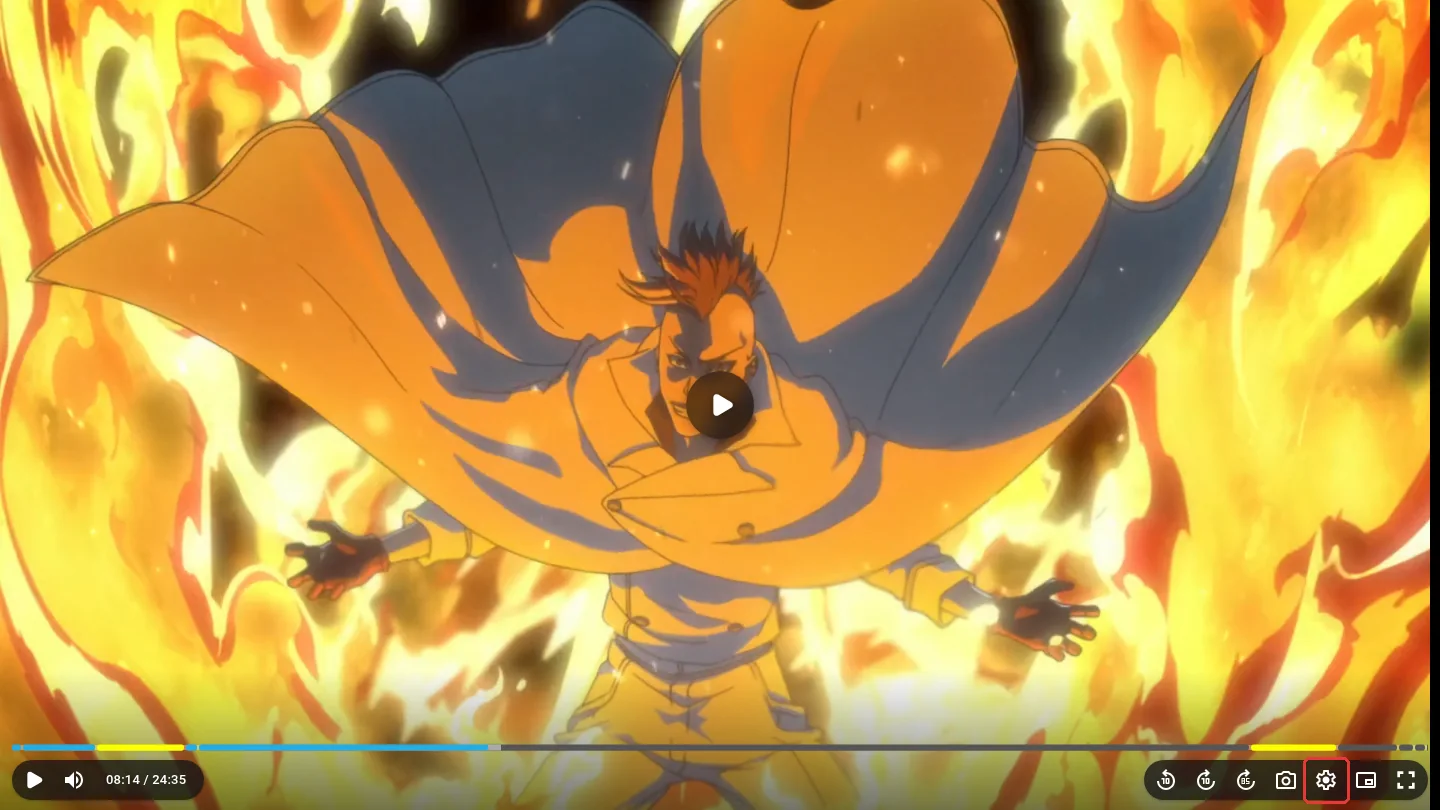
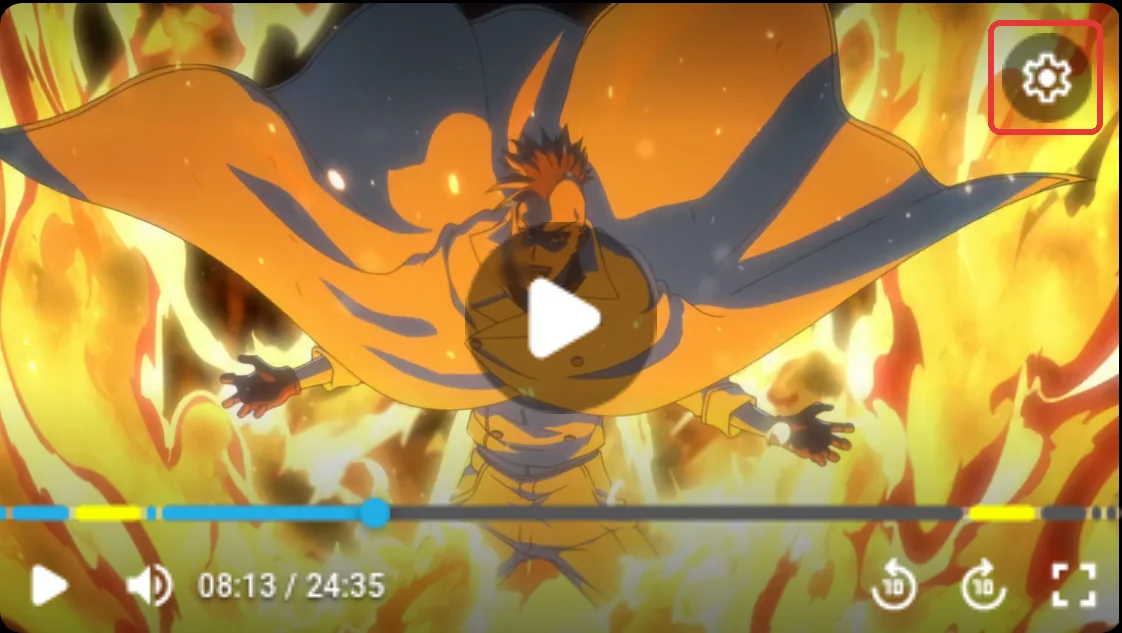
Move your mouse over the video, or tap it once on a phone, so the controls show up. The gear icon is the player settings. On a wide screen it sits at the bottom right of the control bar, next to the fullscreen button. On phones and in small windows it moves to the top right corner of the video instead.
This is the menu inside the video, not the site settings page. Everything about subtitles lives here.
Go to Subtitles
SettingsSubtitles
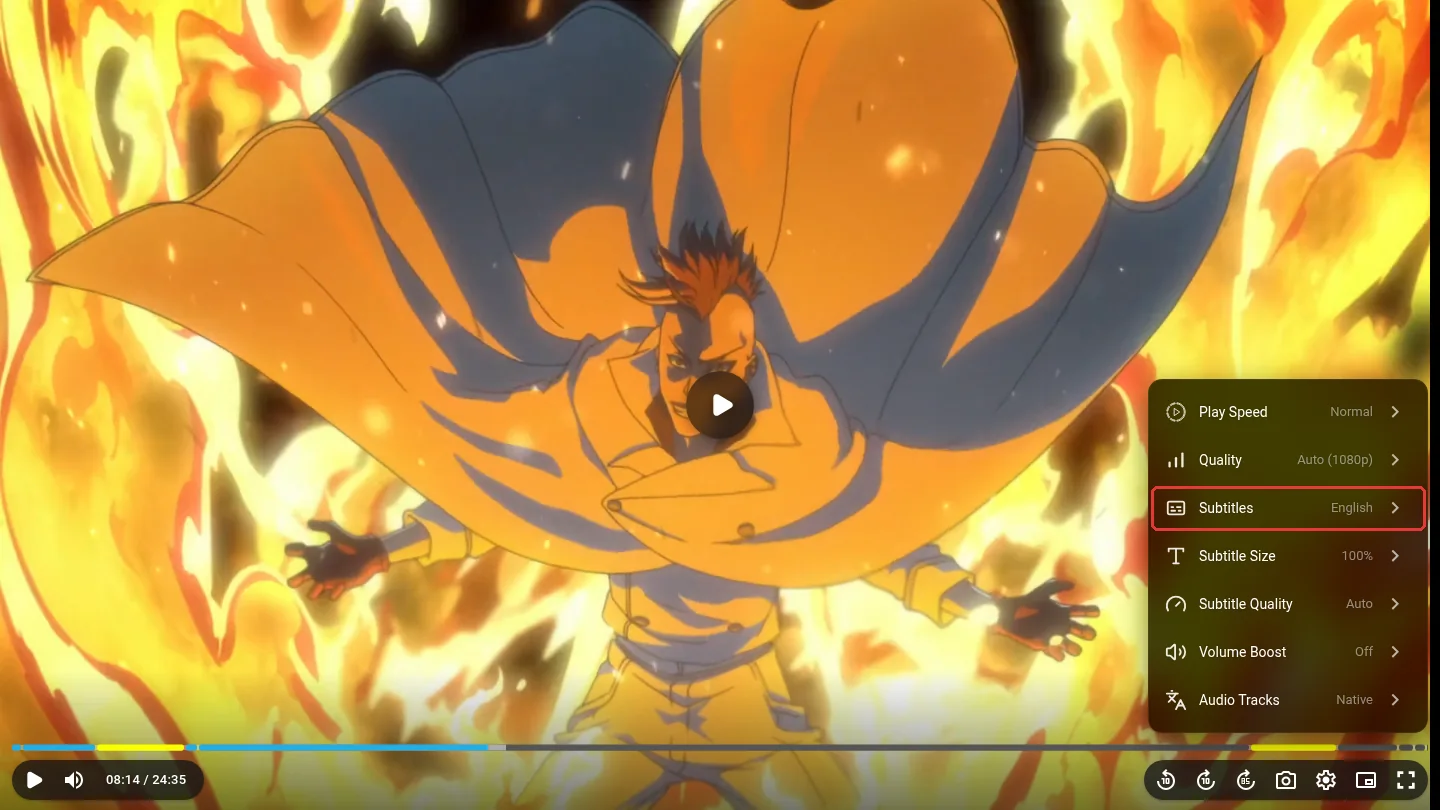
A list opens. Tap the Subtitles row. The value on its right, for example English, is the track the player is using right now. Leave Subtitle Size and Subtitle Quality alone for now; those change how subtitles look, not whether they show at all.
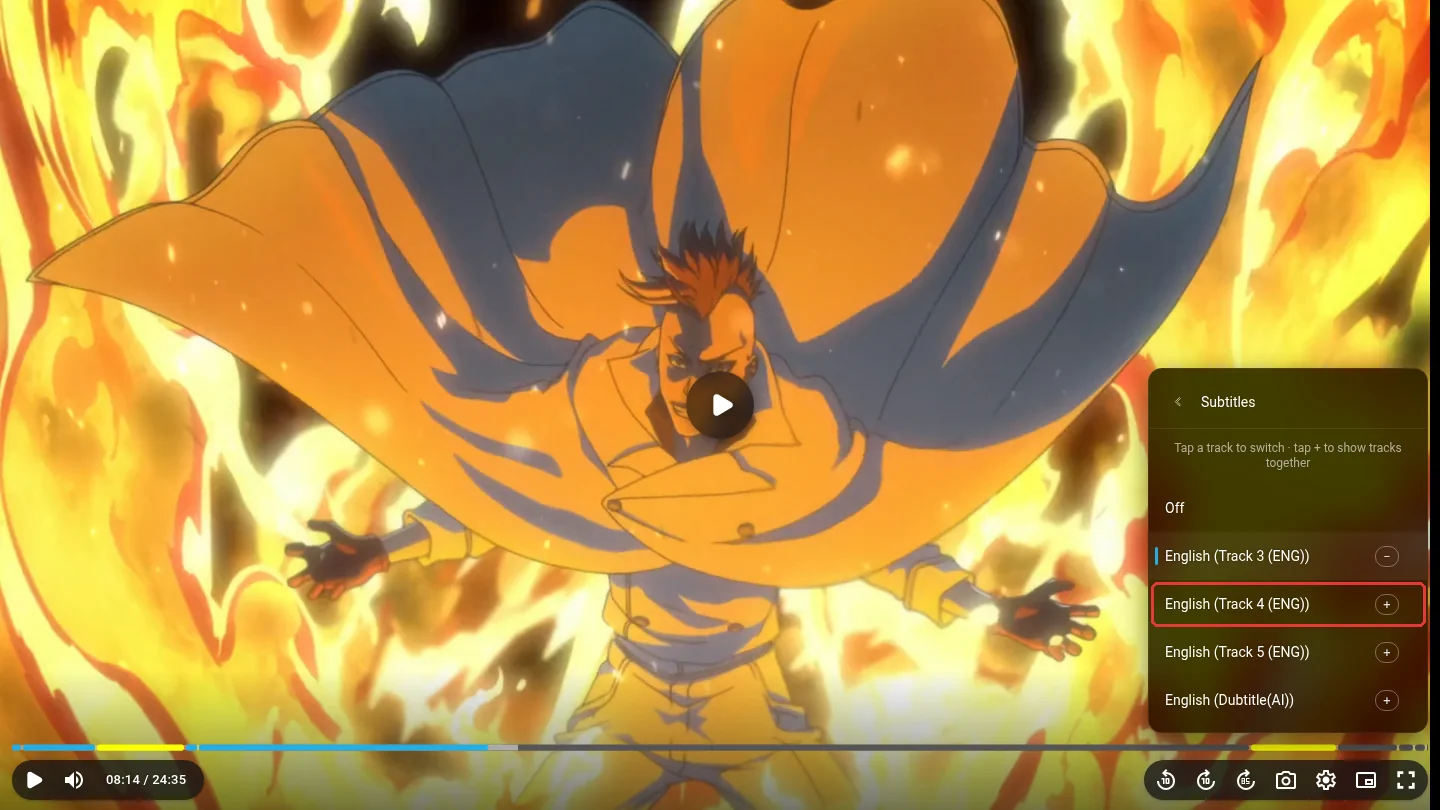
Pick a different track
SettingsSubtitlesEnglish (Track 4)
Every subtitle track in the file is listed. The one with the blue bar and the minus sign is the one currently playing. If that one is showing you nothing, tap the name of the next English track down. Still blank? Tap the one after it. One of them carries the full dialogue.
Tap the track name, not the small plus. The plus stacks a second track on top of the current one, which is handy if you want two languages at once and confusing if you do not. English (Dubtitle(AI)) is a machine transcript of the English dub and a last resort only.
Check the video
Player
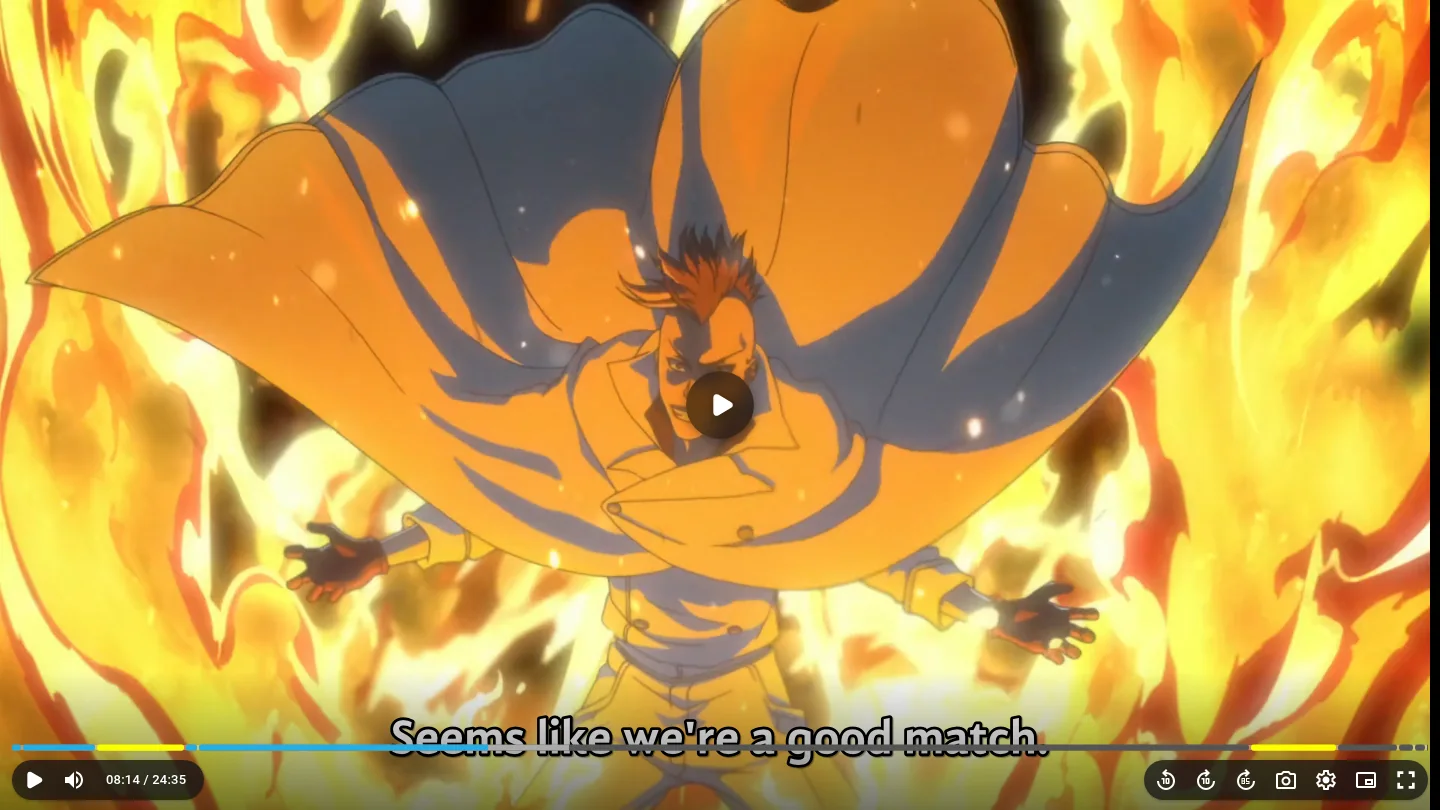
Picking a track drops you back on the settings list. Tap the gear again to close it, then wait for the next line of dialogue. The shot above is the exact same scene and the exact same second as the first one. Nothing was broken; the player was simply reading an empty track.
Good to know
- Why so many English tracks? Episodes come from dual audio releases. Those carry a full dialogue track for the Japanese audio plus a signs and songs track meant for the English dub, which only translates on-screen text. Sometimes a track is simply empty. The player cannot tell them apart, so it starts on the first one.
- The player remembers your pick for that episode, so reloading keeps it. The next episode starts from the first track again. If it is blank again, same three taps.
- If the list shows Off with the blue bar, subtitles were switched off at some point. Pick any track to turn them back on.
- Too small to read? Subtitle Size sits right under Subtitles in the same menu.
- Hearing English voices on the sub server? Audio Tracks, at the bottom of the same menu, switches between Native and English audio without leaving the page.
- Every track blank, on every episode? Switch to the other server under the player. Each server has its own file with its own tracks. If that fails too, use the Report button so we can fix the episode.